
Keep your profile details current and choose which contact information visitors can see.
Before You Begin
You need a Best Lawyers account and an activated profile. Your menu may vary by account role and plan. If you need access, request a Best Lawyers account.
Update Your Profile Details
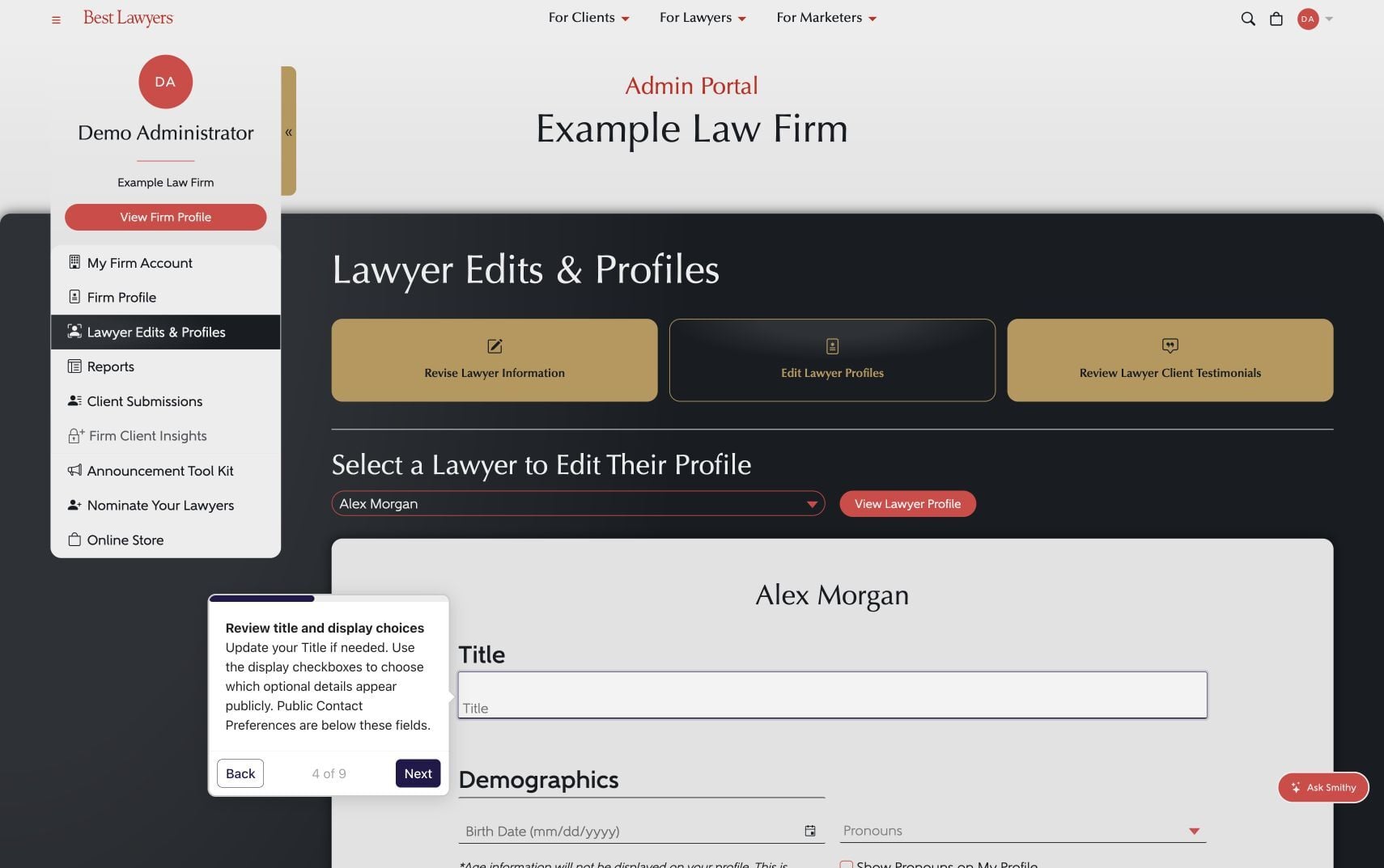
- In My Lawyer Account, select Lawyer Profile. If you use a firm account, open Lawyer Edits & Profiles and choose the correct lawyer.
- Select the pencil on the profile card.
- Review your title and display preferences. Where a field has a Show on My Profile checkbox, choose whether to display it publicly.
- Review your changes and select Save.
Review Public Contact Preferences
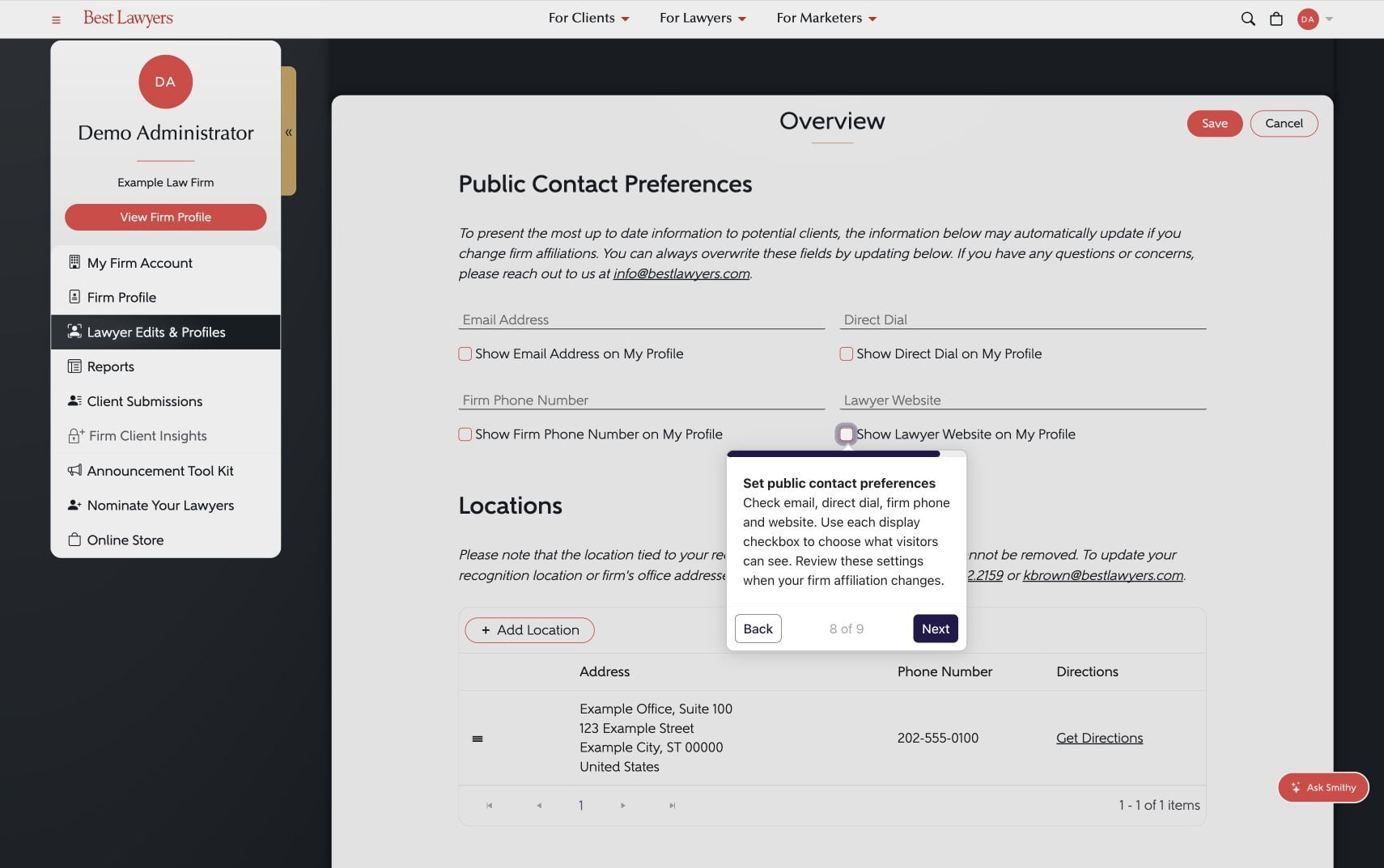
- Find Public Contact Preferences in the profile editor. In the firm-admin layout, open Overview editing to find these settings.
- Check the email address, direct dial, firm phone number and website. Use the display checkboxes to choose which details visitors can see. Review these settings when your firm affiliation changes.
- Save the section when you are finished. In the Overview editor, use the Save button at the bottom of the full section.
Check the Result
Reopen the section to check that your changes were saved. Use View Lawyer Profile to review the public page and confirm that its contact information and display choices are correct.
Try the Interactive Walkthrough
This nine-step walkthrough uses fictional example details. It does not change your live profile. Open the profile details and contact settings walkthrough in a new tab.
For the full editing guide, see Update a lawyer profile. If the expected profile or edit controls are missing, contact Best Lawyers.