
Use your firm account to add a new headshot or replace an existing photo on a lawyer’s Best Lawyers profile.
Before you begin
- Sign in to the firm account that manages the lawyer’s profile.
- Have a JPG or PNG image, at least 300 × 300 pixels, ready on your device.
- Confirm which lawyer you are updating before changing the photo.
Need access? Request a Best Lawyers account.
Update the profile photo
- Open Lawyer Edits & Profiles.
In your signed-in firm account, select Lawyer Edits & Profiles from the account menu. - Select the lawyer and open the photo editor.
Choose the lawyer from the selection menu and check the name on the profile card. Select the small pencil icon on the photo or initials to open Lawyer Photo. - Choose your image.
Select the image button at the far left beneath the photo workspace. Choose a JPG or PNG that is at least 300 × 300 pixels. - Adjust the crop.
Drag the white square handles to frame the headshot. Keep the face centered with enough space around it. - Check the Preview.
Review the circular Preview beside the workspace. If the face is cut off, adjust the crop and check again. - Save your changes.
Select Save beneath the editor to keep the new profile photo.
Find the image button and Preview
The image button is the first control beneath the workspace. The Preview shows how the crop will look in the profile’s circular photo.
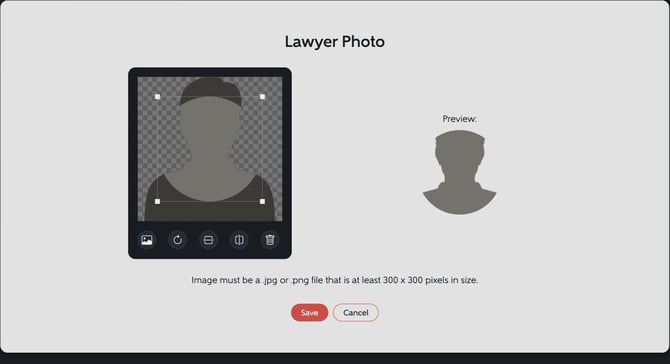
Example photo workspace from the interactive walkthrough. The illustration and sample labels are for demonstration only.
If something does not look right
- The image will not upload: check that the file is JPG or PNG and at least 300 × 300 pixels.
- The face is cut off: adjust the crop handles, then check the circular Preview before saving.
- You cannot find the lawyer or editing controls: confirm that you are in the correct firm account. If you still need help, contact Best Lawyers.
Try the interactive walkthrough
Practice each step on an example profile. The walkthrough does not change a real profile; repeat the steps in your signed-in account to update the actual photo.
Explore the six-step guide below.